Zshell is a powerful terminal and popular alternative to bash. Oh My Zsh is an open source framework for Zshell with many themes and plugins. In this post, I’ll share my top 12 themes that will accommodate any developer.
How to Install Themes in ZSH?
Installing themes in Zsh is easy. You:
- Open up your .zshrc file
- Find the line
ZSH_THEME="eastwood"and replace the value with whatever theme name you want to change it to (yours may not say eastwood, but whatever value is there, that is what you will change.).
If you aren’t familiar with the terminal or haven’t used vi, then here are the commands:
cd ~ # to get to your root directory where the .zshrc file resides
vi .zshrc # edit file with vi editor
# hit the "i" key to be able to insert text and edit file
# replace theme name with whatever theme you want to use (see below examples)
# when finished, hit the escape key, then :, then wq to write and quit vi
# finally run "omz reload" (or "source ~/.zshrc") to apply the change without closing your terminal
Top 12 Oh My Zsh Themes for Productive Developers
As stated in my Top 10 Oh My Zsh PLUGINS post, Oh My Zsh is an open source framework for Zshell with many themes, plugins, and productivity hacks.
It’s become an essential tool in my developer toolkit.
In this post I want to give what I think are the top 12 Oh My Zsh themes out there.
I know you may be wondering, “How did he determine this? How does he know what the top themes are? Isn’t that overly subjective?”
It is.
But I have chosen 12 that I think represent the wide range of styles found in the well over 100 Oh My Zsh themes out there, many of which I have used myself.
They range from very simple and minimal to fancy and full of data that many would find useful.
Be sure to post down in the comments what your favorite Oh My Zsh theme is.
So let’s get started!
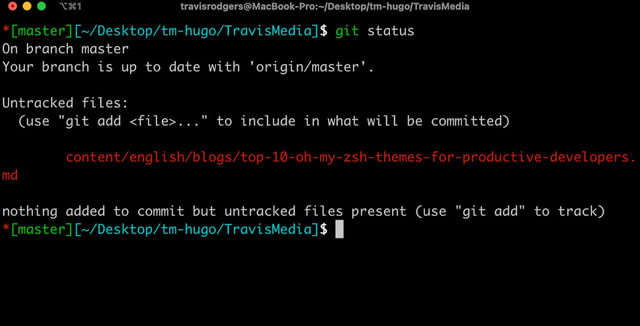
Theme #1: Eastwood
Eastwood is what I currently use.
I chose it for it’s simplicity.
You see the git branch and the directory you’re in. That’s all I need.
ZSH_THEME="eastwood"Theme #2: Simple
The Simple theme is another good one. It reverses the order of Eastwood and lists the directory with the git branch in parentheses.
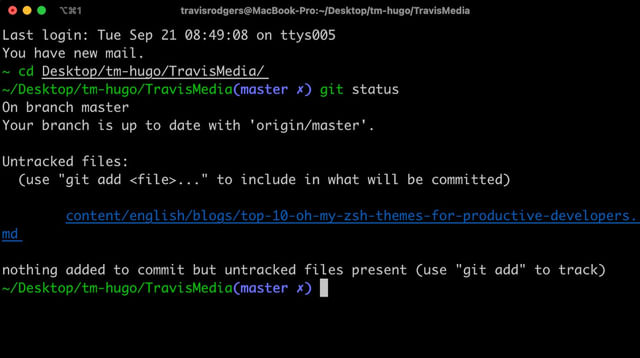
ZSH_THEME="simple"Theme #3: Lukerandall
Similar to the simple theme but doesn’t feel the need to give you the entire path of your project (from the root).
Instead it gives you the path from the parent folder you are in.
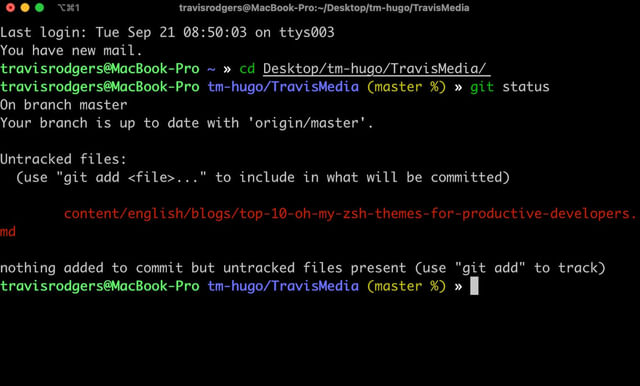
ZSH_THEME="lukerandall"Theme #4: Gozilla
If you want the git branch but NOT the path showing, then this theme might work for you.
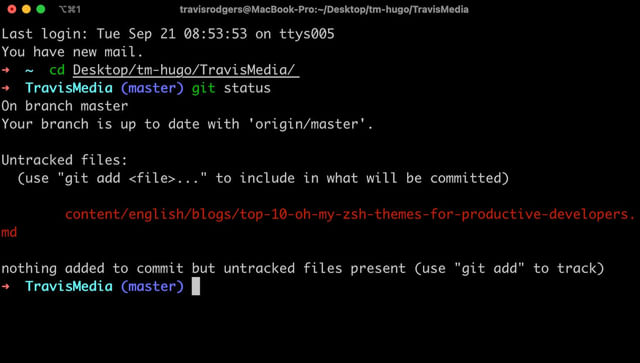
ZSH_THEME="gozilla"Theme #5: Kphoen
With kphoen you get the directory AND the git branch, and then you get your prompt pushed to the next line which can be a bit cleaner than fitting it all on one line:
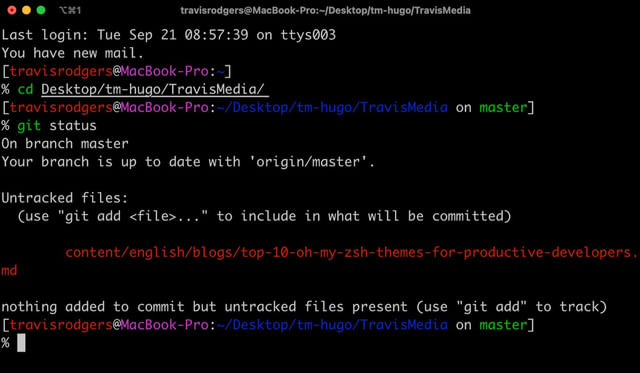
ZSH_THEME="kphoen"Theme #6: Jonathan
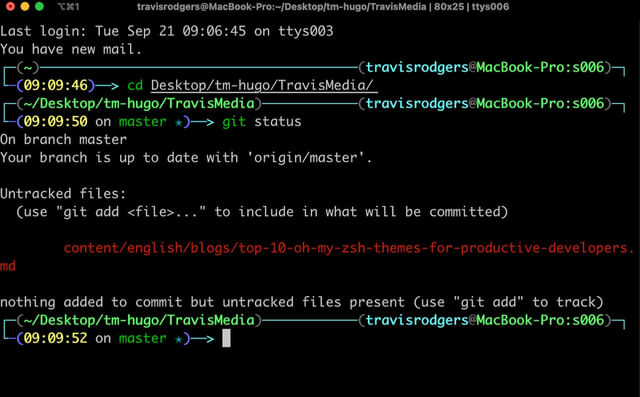
Some of you like fancy terminals. This may be for you.
You get all the info, including the time (🤓), along a nice arrow that culminates at your prompt.
ZSH_THEME="jonathan"Theme #7: Minimal
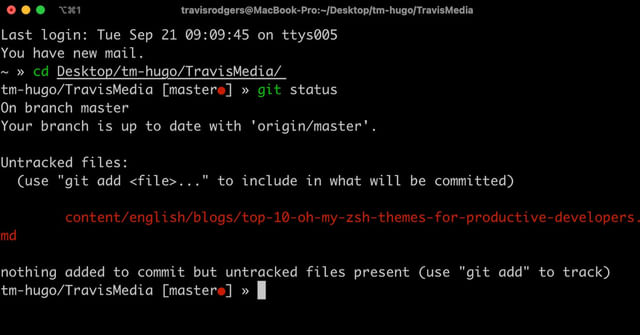
Simple, plain, colorless, and uber productive.
ZSH_THEME="minimal"Theme #8: Apple
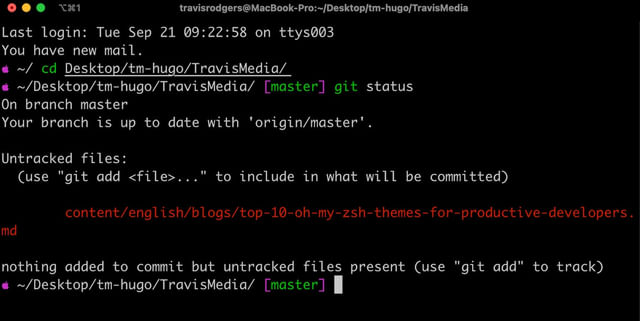
Kind of nice for us mac lovers (though the apple is pink 😒).
But somewhat minimal and refreshing.
ZSH_THEME="apple"Theme #9: Gnzh
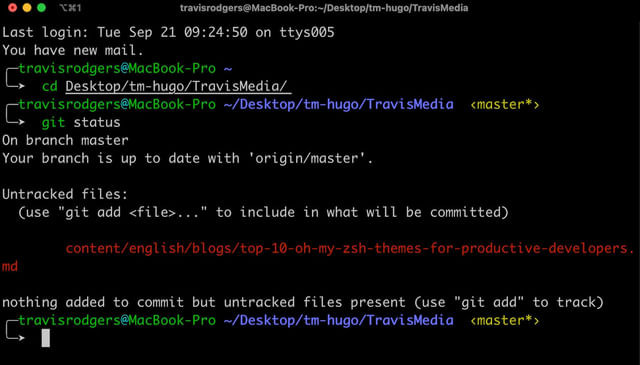
I like this one and may switch to it a bit.
For me it includes the essentials (full path and branch) and then places you on a new line at the end of an arrow.
Very clean implementation.
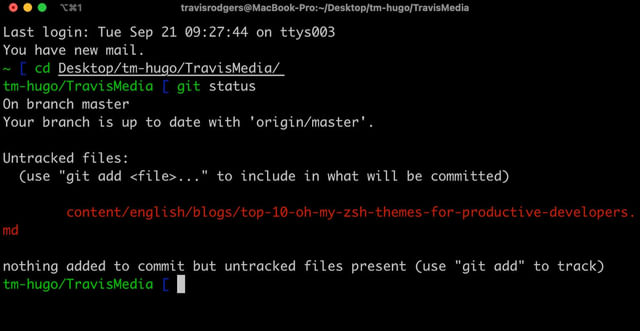
ZSH_THEME="gnzh"Theme #10: Nanotech
The nanotech theme is a nice option for those who do NOT want the path or branch.
ZSH_THEME="nanotech"Theme #11: Agnoster
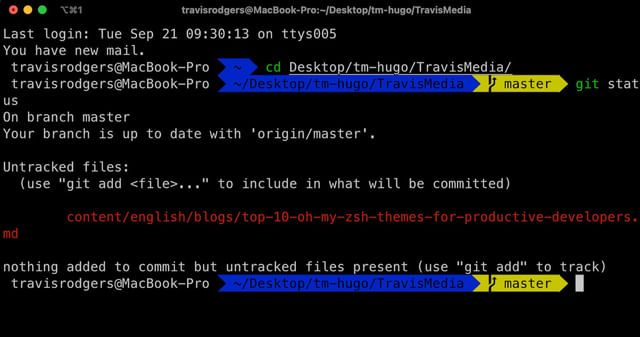
To use the agnoster theme you have to install a patched font. Otherwise you will see some question marks where the symbols are supposed to go. These days the easiest option is a Nerd Font, which bundles the Powerline glyphs plus a lot more. Grab one (Meslo LGS NF is a great default) from the Nerd Fonts site, or install the classic Powerline fonts from the command line:
git clone https://github.com/powerline/fonts.git --depth=1cd fonts./install.shfrom terminal / command line
Then point your terminal at the new font. In iTerm2 that’s Settings -> Profiles -> Text -> Font, where you’ll pick something like 12pt Meslo LG S DZ Regular for Powerline (or your Nerd Font of choice).
After doing that you should see this. It’s a pretty popular look out there:
ZSH_THEME="agnoster"Theme #12: Miloshadzic
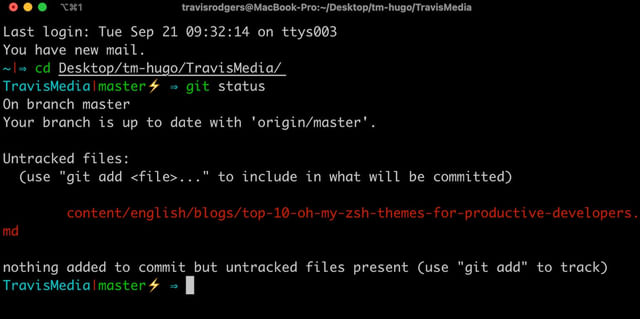
And finally, the miloshadzic theme has a nice, cartoonish lightning bolt. And everyone likes a good lightning bolt:
ZSH_THEME="miloshadzic"Want More Than the Built-In Themes?
The 12 above are the classic, zero-extra-install themes that ship with Oh My Zsh. If you want something more powerful, two prompts have taken over for power users since I first wrote this post:
- Powerlevel10k has been the go-to “fancy” Oh My Zsh theme for years. Its configuration wizard walks you through the look, it emulates the popular powerline style, and it’s fast. The one caveat in 2026: the project is now in minimal maintenance mode, so don’t expect a lot of new development.
- Starship is the modern, actively maintained option. It’s a cross-shell prompt written in Rust, so it’s quick, and it works the same whether you’re in Zsh, Bash, or Fish. If you’re starting fresh today and want a customizable prompt that’s still being worked on, this is where I’d point you.
Both go beyond what the built-in themes do, but for a clean, no-fuss terminal the 12 above still hold up. And if you want to round out your setup, pair your theme with my Top 10 Oh My Zsh plugins.
Conclusion
So there you have it, my top 12 Oh My Zsh Themes for developers.
I believe these 12 will give a well-rounded baseline to any developer out there looking for a new style in their terminal.
So what Oh My Zsh theme do you use? Which do you recommend? Let’s discuss down in the comments.
This page may contain affiliate links. Please see my affiliate disclaimer for more info.